All Classes Namespaces Functions Variables Typedefs Enumerations Enumerator Friends Pages
WebBrowserExample.cpp
WebBrowserExample-screenshot.png
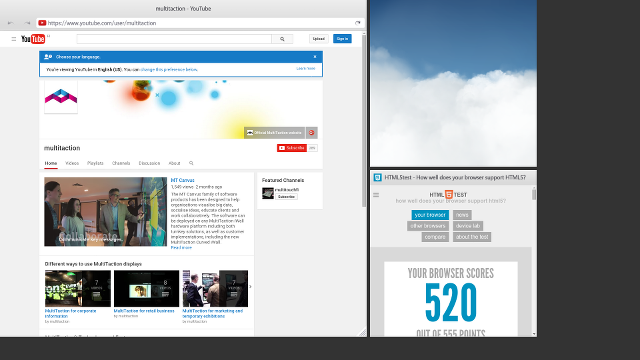
Screenshot of the WebBrowser example

The WebBrowser tutorial demonstrates how to create web browser widgets, display pages from the internet, and customize the browser behavior and look using CSS. Also see WebBrowser.js on how to send commands to the browser and monitor its state using JavaScript.

To use a web browser, you need to include the header file for the class:

#include <WebBrowserCef/BrowserWidget.hpp>

After we have created and initialized the main application class normally, we can instantiate the web browser widgets. We will create three widgets and set a unique CSS ID for each of them.

for (int i = 0; i < 3; ++i) {
auto w = MultiWidgets::create<WebBrowserCef::BrowserWidget>(app.mainLayer());
w->setCSSId(QString("Browser-%1").arg(i));
}

We use C++ just to create the browser widgets, we set everything else from a CSS file. In order to show any content, we need to specify a URL for the source attribute. Let's open Youtube on the first browser and also resize it to 1100 x 1010 pixels. This browser will have all basic features enabled, it has an address bar, favicon, back, forward and reload-buttons and a title. It also has touch, virtual keyboard and a resize button on the right-bottom corner.

#Browser-0 {
source: "https://www.youtube.com/user/multitaction";
size: 1100px 1010px;
}

Open the second browser next to the first one, and open some WebGL content there. Let's make this look like a non-interactive video, so also disable all touch and virtual keyboard just by setting input-flags to none.

#Browser-1 {
location: 1110px 0px;
size: 500px 500px;
source: "http://mrdoob.com/lab/javascript/webgl/clouds/";
/* Disable touch and virtual keyboard */
input-flags: none;
}

We also don't want the browser frame or resize button, only the actual browser contents. Hide all extra:

#Browser-1 > BrowserFrameWidgetCef, #Browser-1 > ResizeHandleWidget {
display: none;
}

Now we have a full-featured browser as well as minimal one. Let's do some more customization to the third one. Let's make the browser frame to only include favicon and page title, nothing else. Start by opening html5test.com below the previous browser:

#Browser-2 {
source: "html5test.com";
location: 1110px 510px;
size: 500px 500px;
}

First, hide all buttons:

#Browser-2 > ResizeHandleWidget, #Browser-2 .button {
display: none;
}

Favicon and reload buttons are part of the address bar. If we would hide the whole AddressBarWidget, it would also hide the favicon. Instead, just hide the url bar inside AddressBarWidget, remove the white background and instead of taking all available space, minimize it. Now the AddressBarWidget only has the favicon image.

#Browser-2 AddressBarWidget {
background: transparent;
flex-resize-to-content: x;
flex-grow: 0;
}
#Browser-2 .url {
display: none;
}

Next set the title to the right side of the favicon by setting depth to 10. The BrowserFrameWidget is using flexbox layout where the depth determines the widget ordering. Also set flex-grow to make sure the title will take all available space.

#Browser-2 .title {
flex-grow: 1;
depth: 10;
text-align: left top;
}

If you ever want to modify how touch and virtual keyboard works, you need to modify settings in WebBrowserCef::BrowserTouchOperator and WebBrowserCef::BrowserVirtualKeyboardOperator. Here are the default settings:

#Browser-2 BrowserTouchOperator {
/* Enable touch using fingers */
finger-touch-enabled: true;
}
#Browser-2 BrowserVirtualKeyboardOperator {
/* Should we open the keyboard when browser sets focus to editable element.
* Enabling this would for example open keyboard automatically on google.com */
spawn-on-focus: false;
/* Should we move the keyboard automatically to a new location every time focused
* element changes. This would for example move keyboard under a text field when
* pressing tab to change between elements in a form */
relocate-on-focus: false;
/* Open the keyboard when touching editable element */
spawn-on-touch: true;
/* Move the already opened keyboard automatically when touching a different
* editable element */
relocate-on-touch: false;
/* Should the keyboard be closed when the browser loses focus. This will
* usually close the browser when pressing enter or submit button on a form */
close-on-unfocus: true;
/* Keyboard layout */
layout: "default";
/* Keyboard language */
language: "en";
/* Add the keyboard to first widget that matches this simple CSS selector.
* Set this for example to "#MainLayer" to open keyboards to main layer */
host-selector: ".KeyboardHost";
/* After calculating optimal location for the keyboard, add this offset
* to the location. This will add the keyboard below the activated element */
offset: 0 50px;
}

The browser widget itself acts like any other widget. It can have child widgets and a parent widget, it can be animated and so forth. The C++ source code for the example is shown below.

/* Copyright (C) 2007-2013 Multi Touch Oy, Finland, http://www.multitaction.com
*
* This file is part of MultiTouch Cornerstone.
*
* All rights reserved. You may use this file only for purposes for which you
* have a specific, written permission from Multi Touch Oy.
*
*/
#include <MultiWidgets/Application.hpp>
#include <WebBrowserCef/BrowserWidget.hpp>
int main(int argc, char ** argv)
{
app.addStyleFilename("WebBrowserStyle.css");
if (!app.init(argc, argv))
return 1;
for (int i = 0; i < 3; ++i) {
auto w = MultiWidgets::create<WebBrowserCef::BrowserWidget>(app.mainLayer());
w->setCSSId(QString("Browser-%1").arg(i));
}
return app.run();
}