In this example we create a web browser widget using CEF (Chromium Embedded Framework) backend. Simple functionality is available in JavaScript, but more low level operations need to be done in C++. For browser customization, also look at WebBrowserExample.cpp.
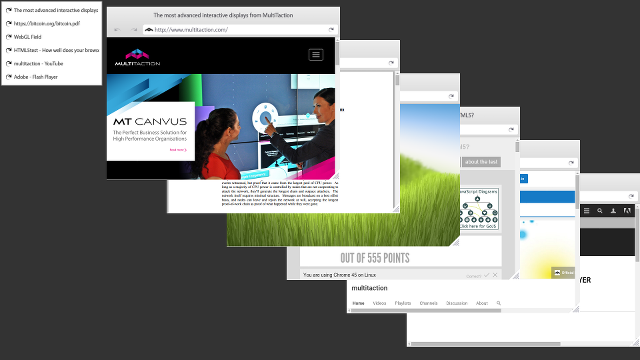
Screenshot of the WebBrowser example
We start by defining our style sheet that defines the looks and size of all widgets in the example.
$.app.addStyleFilename(__PATH__ + "/style.css");
We are going to create a number of browser widgets. Make a list of pages we would like to open. Let's test PDF files, Flash, WebGL, HTML5, Youtube and typical company website.
var urls = [
"multitaction.com",
"https://bitcoin.org/bitcoin.pdf",
"webglsamples.org/field/field.html",
"html5test.com",
"https://www.youtube.com/user/multitaction",
"www.adobe.com/fi/software/flash/about/"
];
In order to demonstrate sending commands to the browser as well as monitoring its state, let's create a separate list of browser titles and add a reload button next to each title. Tapping on a title should bring that browser on top, and tapping on the reload button will reload the web page. Start by creating the list widget that will have all the titles.
var list = new MultiWidgets.Widget($.app.mainLayer());
list.addCSSClass("list");
Create the browsers using WebBrowserCef.BrowserWidget and also create a title TextWidget and a reload button for all of them. Also create a parent widget for the title and reload that works as a list item. We are using flexbox layout to set the widget positions, see style.css for details.
urls.forEach(function (url, i) {
var listItem = new MultiWidgets.Widget(list);
var reload = new MultiWidgets.ImageWidget(listItem);
reload.addCSSClass("reload");
var title = new MultiWidgets.TextWidget(listItem);
title.addCSSClass("title");
var browser = new WebBrowserCef.BrowserWidget($.app.mainLayer());
We want to reload the page when user taps on the reload button. Add a simple listener for that:
reload.eventAddListener("single-tap", function () {
title.setText("Reloading...");
browser.webPage(true).reload(true);
});
Tapping on the title should bring the browser widget on top:
title.eventAddListener("single-tap", function () {
browser.raiseToTop();
});
Finally synchronize web page title changes to the title widget text. WebBrowserCef.WebPage sends an event title-changed every time the title changes. This event is sent from the browser UI thread, but widgets can only be accessed from the main thread. That is why we use AFTER_UPDATE listener, which will make sure the callback is called in the main thread.
browser.webPage(true).eventAddListener("title-changed", function (t) {
title.setText(t);
}, Valuable.Node.AFTER_UPDATE);
As a bonus we also monitor all console messages and print them to log.
function monitor(browser) {
browser.webPage(true).eventAddListener("console-message", function (msg, src, line) {
Radiant.info("[%s] %s:%s %s", browser.source(), src, line, msg);
}, Valuable.Node.AFTER_UPDATE);
}
The full source code is shown below:
$.app.addStyleFilename(__PATH__ + "/style.css");
var urls = [
"multitaction.com",
"https://bitcoin.org/bitcoin.pdf",
"webglsamples.org/field/field.html",
"html5test.com",
"https://www.youtube.com/user/multitaction",
"www.adobe.com/fi/software/flash/about/"
];
function monitor(browser) {
browser.webPage(true).eventAddListener("console-message", function (msg, src, line) {
Radiant.info("[%s] %s:%s %s", browser.source(), src, line, msg);
}, Valuable.Node.AFTER_UPDATE);
}
var list = new MultiWidgets.Widget($.app.mainLayer());
list.addCSSClass("list");
urls.forEach(function (url, i) {
var listItem = new MultiWidgets.Widget(list);
var reload = new MultiWidgets.ImageWidget(listItem);
reload.addCSSClass("reload");
var title = new MultiWidgets.TextWidget(listItem);
title.addCSSClass("title");
var browser = new WebBrowserCef.BrowserWidget($.app.mainLayer());
monitor(browser);
reload.eventAddListener("single-tap", function () {
title.setText("Reloading...");
browser.webPage(true).reload(true);
});
title.eventAddListener("single-tap", function () {
browser.raiseToTop();
});
browser.webPage(true).eventAddListener("title-changed", function (t) {
title.setText(t);
}, Valuable.Node.AFTER_UPDATE);
browser.setSource(url);
browser.setLocation(300+20+i*180, 20+i*100);
});

