This page describes how to setup a development environment to use with Cornerstone.
Cornerstone uses Qt as a dependency and it's utility qmake for creating the project makefiles. These dependencies are included in the SDK installation package.
Installation creates a system environment variable CORNERSTONE_ROOT_<version>. By default all the examples bundled with the installation are compiled against the same SDK version they were installed from, even if you have a newer version of the SDK installed. If you want, you can force the project to compile with another SDK version. This is done by setting the CORNERSTONE_SDK_ROOT environment variable. To set the variable, execute the following command before running qmake:
This section describes how to setup a development environment on Windows for both C++ and JavaScript. Cornerstone requires a 64-bit Windows 7, Windows 8, or Windows 10 operating system. 32-bit operating systems are not supported.
Installing Cornerstone on Windows requires you to download the package installer from https://cornerstone.multitouch.fi download section and installing it by double-clicking on it. By default, Cornerstone is installed under C:\Cornerstone-<version> folder. We refer to the installation directory with CORNERSTONE_SDK_ROOT. You can find some example applications and demos in the CORNERSTONE_SDK_ROOT/bin folder.
On Windows, Cornerstone SDK includes a version of Qt with all the build tools, libraries, and headers. You do not need to install Qt separately. All build tools, like qmake, can be found in the CORNERSTONE_SDK_ROOT/bin folder. Also note, that Cornerstone 2.1.1 uses a custom patched version of Qt on Windows. It is not possible to use the standard Qt packages from http://qt-project.org on Windows.
On Windows, the global configuration files for Cornerstone applications are stored in %APPDATA%/MultiTouch folder.
To compile C++ code in Cornerstone SDK Visual Studio 2015 compiler is required. It is not possible to use older versions of Visual Studio because of the C++11 language features that are used in Cornerstone. It is possible to use the Visual Studio 2015 Express for Windows Desktop available from http://www.microsoft.com/visualstudio/eng/downloads.
The example C++ code can be found under CORNERSTONE_SDK_ROOT/examples. Cornerstone ships with qmake project files (*.pro). To generate Visual Studio makefiles, you can run qmake in the folder containing the .pro file. This will generate a makefile that can be used to compile the software using nmake from the command line. You might want to add the CORNERSTONE_SDK_ROOT/bin folder to the PATH for convienience, but remember to update the PATH variable in case you update your Cornerstone installation.
For an IDE, you can use Qt Creator (http://qt-project.org) or Visual Studio. Qt Creator has native support for qmake project files. You can use qmake to generate native Visual Studio project files from the .pro files. To do this run:
This will generate a native Visual Studio project file that you can open with the Visual Studio IDE.
The JavaScript examples can be found in the CORNERSTONE_SDK_ROOT/examples/JavaScript folder. To run these, run the run.bat script found in each example folder. For example, to run the HelloWorldJavaScript example, double-click on the CORNERSTONE_SDK_ROOT/examples/JavaScript/HelloWorld/run.bat file.
This section will describe how to setup developer tools on Linux platform. We cover some distribution-specific issues and both C++ and JavaScript development.
Cornerstone requires a 64-bit Ubuntu 14.04. 32-bit installations are not supported. Installing the Cornerstone SDK on Ubuntu requires you to download the installer from https://cornerstone.multitouch.fi download section and running it. Once you have downloaded the installer, you can install it with the following command:
Note that the version number in the package filenames might be different. After installing the packages, the Cornerstone SDK can be found in /opt/cornerstone-2.1.1, where the version number will change with different releases. You can find the example applications and demos in /opt/cornerstone-2.1.1/bin where you can run them from.
On Linux, the global configuration files for Cornerstone applications are stored in .MultiTouch folder in the user's home directory.
In order to try to compile some of the C++ examples in the SDK, we recommend you copy the example folder to your user's home directory so you have write permissions to make modifications and to compile them. You can copy the examples to your home directory by entering the following command:
This will create an examples folder in your home directory. After this you can build the examples from the command line. For example, to build the HelloWord example, execute:
This will compile the HelloWorld example.
JavaScript examples can be found in the examples/JavaScript folder. To run these, you can just change to a folder and execute the run.sh script. For example, to run HelloWorld JavaScript example, do the following:
This section describes how to setup the development environment for Cornerstone on the OS X platform. We cover both C++ and JavaScript development. Cornerstone requires OS X Yosemite.
Installing Cornerstone on OS X requires downloading the installation package from https://cornerstone.multitouch.fi download section.
On OS X, the global configuration files for Cornerstone applications are stored in Library/MultiTouch folder in the user's home directory.
Cornertone SDK on OS X requires clang version 7.0 to build. Compiling with gcc is not supported. Clang is provided by Xcode.
To build C++ applications on OS X, Cornerstone also requires Qt version 4.8.6 which is not included in the SDK package. Note that Qt the version must be 4.8.6. Newer Qt versions will not work. For convenience, the correct Qt version for OS X can be downloaded from the download section from https://cornerstone.multitouch.fi
Once the compilers and Qt are installed, we can build an example from the SDK. First, we recommend you copy the example files to, for example, your home directory so you don't modify the system-wide files. You can copy the files using the terminal:
or use the Finder to copy them.
After this we can build the examples. However, QMake will still default to gcc on OS X, so we must manually specify that we use clang to generate correct makefiles. For example, to build the HelloWorldExample, run:
This will build the HelloWorldExample using clang.
For an IDE, you can use Qt Creator (http://qt-project.com). Remember to define the correct tool chain (clang) for it.
The JavaScript examples can be found in the examples/JavaScript folder. To run them, execute the run.sh script found in each example folder. For example, to run the HelloWorld JavaScript example, do the following:
All Cornerstone applications accept mouse and keyboard input by default. This can be used to simulate a touchscreen with some restrictions, so not all developers need their own display. Any Cornerstone application can also be run with the –dummy argument to disable any touchscreen input to the application.
Pressing the left mouse-button and dragging the mouse creates a simulated finger and hand.
Pressing letter p in the keyboard puts a stationary finger and hand to the current cursor location, and you can still move another fake hand freely with the mouse. This is useful for performing multitouch gestures such as zooming and rotation.
Pressing w creates a fake hand with two fingers (once you press the left mouse button, and drag around). In some applications the number of fingers per hand is important so this option can be used in those cases, to separate one-finger hand motion from two finger hand motion.
You can change the input type by pressing y from the keyboard. First press causes the finger-input change to pen-input and second press from pen to marker-input. The default virtual marker code is 42 but can be changed by giving Application an input argument --virtual-marker-code CODE.
Here is a list of environment variables used inside the Cornerstone. There are mainly used for debugging, but might have some value when developing your applications.
Environment variables can be set using the "export"-command in Linux and Mac OS, and using "set"-command in Windows.
| Variable | Explanation |
|---|---|
| CORNERSTONE_CVPLUGIN_DIR | Additional paths where to look for Cornerstone Computer Vision Plugins (folders with suffix ".cvplugin"). Does not override the default search paths which are always used. Multiple paths separated by semicolon. Example: export CORNERSTONE_CVPLUGIN_DIR="path1";"path2"; |
| CORNERSTONE_DISABLE_SIGNAL_HANDLERS | By default MultiWidgets::Application catches operating system SIGSEGV and SIGTERM signals and tries to perform a clean shutdown when these signals are caught. With this flag you can disable the signal handlers. This can be useful, for example, when you are trying to debug crashes. Only on Unix-like systems (OS X, Linux) Example: export CORNERSTONE_DISABLE_SIGNAL_HANDLERS=1 |
| CORNERSTONE_NOLOCK | By default, Cornerstone tracker checks for a lockfile to see if any other Cornerstone trackers are already running to prevent multiple instances from running simultaneously. You can disable this check with this variable. Example: export CORNERSTONE_NOLOCK=1 |
| CORNERSTONE_PLUGIN_DIR | Additional paths where to look for Cornerstone Plugins (folders with suffix ".csplugin"). Does not override default search paths which are always used. Multiple paths separated by semicolon. Example: export CORNERSTONE_PLUGIN_DIR="path1";"path2" |
| CORNERSTONE_SDK_ROOT | This environment variable can be used to tell qmake where to find Cornerstone SDK. If you have multiple Cornerstone versions installed, this environment variable can be used to select which one to use when compiling an application. |
| NO_WATCHDOG | Cornerstone applications use a watch dog thread by default which tries to detect if the application becomes non-responsive. If that happens, the watch dog will kill the application process. To disable this feature you can set this following environment variable. Example: export NO_WATCHDOG=1 |
| RESONANT_DEVICE | Can be used to set the audio device used by the Resonant audio library that Cornerstone uses. List of devices can be acquired by running utility application ListPortAudioDevices. |
Every Cornerstone application includes a tool called Widget Inspector. This is activated by pressing the i key on the keyboard while an application is running. Please note that if you are running in frameless mode, the inspector might not show up because it will be behind the Cornerstone window.
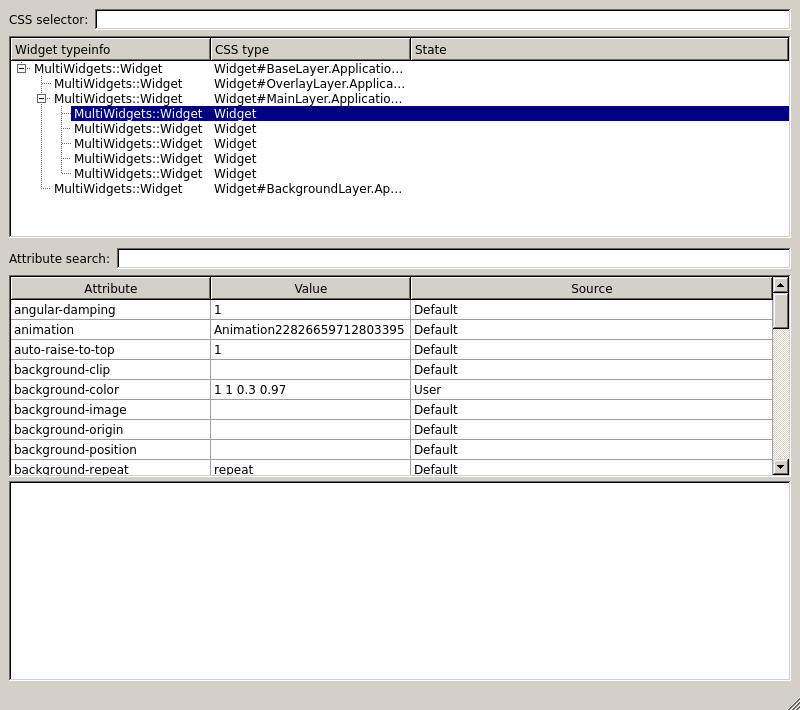
The Widget Inspector displays the widget hierarchy in the application. It can be used to monitor and modify all the attributes in the widgets.
The widget hierarchy in the application is displayed on the top tree-view in the inspector UI. Widgets can be added or removed by right-clicking on a widget and selecting an action from the popup menu. The list of displayed widgets can also be filtered using CSS selectors by typing a selector in the CSS selector field.
The attributes for the selected widget are shown in the attribute table. The table displays the attribute name, its value, and the attribute layer that defines the value. The values can be modified in the table and they are immediately applied to the widgets. The table can be filtered by writing an attribute name (or parts of it) to the Attribute search field.
The display layout configuration for Cornerstone application is stored in screen.xml file. See the Configuration Files for each platform where this file is stored.
The screen.xml file contains the geometry of one or more windows and how they are located on the underlying operating system desktop. The image below shows how windows and areas are defined:
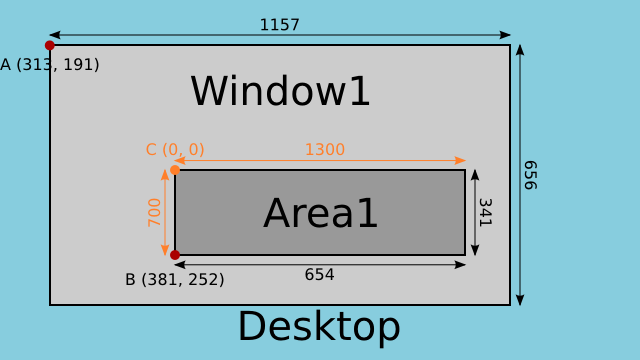
Window represents a standard operating system window. Window location and size is defined in desktop coordinates (point A in the figure).
Area represents an OpenGL viewport inside the window. Area coordinates are defined in window coordinates (point B in the figure) with the origin being bottom-left corner.
Graphics coordinates (point C, shown in orange in the picture) define the application coordinate system inside the area.
Graphics coordinates define how the coordinates in your application map to the screen. For example, in the above example drawing a 1x1 widget to (0, 0) would cause the widget to be rendered to the top-left corner of the area. Moving the widget to (-1,-1) would cause it to disappear.
The most common setup for the display layout is one window per GPU, one area inside each window with same size as the window and graphics coordinates defined so that the graphicssize matches the area (and window) size and graphicslocation used to offset the coordinates as needed.
For best performance, the number of areas and windows should be minimized, but windows should never span more than one GPU. Ideal configuration is a single area inside each window and one window per GPU.
Multiple areas inside a single window are not typically used when working with LCD displays. They are used when working with projectors to implement edge blending.

