Cornerstone provides an easy way to create animated UIs.
By animating Attributes, Cornerstone provides lots of freedom for animating widgets.
There are two APIs for creating animations. One is based on a class of operators, called animators, and the other on static keyframe animation.
Animators are a class of Operators. They are simply operators with keyframe animation built-in. They provide an easy way of animating widget attributes, such as scale, location, rotation, size, etc.
Animators can be created just like operators by using std::make_shared. In addition some standard animators have their own static methods to create them, such as AnimatorScale::newScaler. Adding the animators to the target widget is done in a similar manner, using the addOperator-method. Widget removes the animators once they are finished.
The animation is defined in terms of key frames. Each key frame pairs a time (in seconds) and parameter value (the class template type T). Typically parameter types are either floats (for rotation, scale, opacity, etc) or vectors (for location, size, etc).
The base class implements linear key frame animation of the attributes. Derived classes might however use different kinds of interpolation-methods if they choose so.
Here is a simple example of using animators with two keyframes:
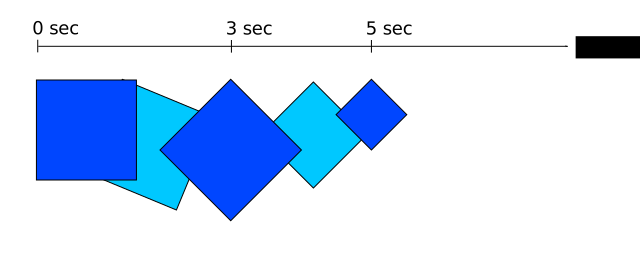
There are multiple of Animator flags which you can also use to adjust the behaviour. Many default animators are found on the MultiWidgets-namespace. It is also quite easy to create your own animators by inheriting from MultiWidgets::Animator.
The animation API consists of the classes MultiWidgets::Animation, MultiWidgets::AnimationClip, and MultiWidgets::AnimationCurve. It provides methods to define animation curves, control their playback, and access to animation state of each animation. The animations can be referenced by their user-defined names.
Please note that this API is currently under development and may change in the future.
MultiWidgets::AnimationCurve defines a single animation curve. The curve consists of key frames. The values between two key frames can be interpolated with different algorithms, such as step interpolation, linear interpolation, or cubic Bézier interpolation. By default, curves are interpolated using cubic Bézier interpolation. Each curve can use a different interpolation method between every pair of key frames. For example, below we create an animation curve that uses a linear interpolation between the first two key frames and cubic Bézier interpolation between the next two:
Animation curves are connected to attributes with MultiWidgets::AnimationClip objects. Each animation clip can contain one or more animation curves that animate different attributes. To animate the location attribute with a curve, we would define the following animation clip:
In addition to the animation curves themselves, the animation clip also defines how the animation of the attribute should behave when the clip playback reaches the end. This controlled with the MultiWidgets::AnimationClip::WrapMode parameter of the animation clip. For example:
would make the animation clip loop.
The playback of animation clips is controlled by MultiWidgets::Animation object. It provides the API to control the playback of animations and access to animation state of each animation clip. Each widget has an instance of MultiWidgets::Animation that controls all the animations defined for that widget instance. The animation object can be accessed with MultiWidgets::Widget::animation function.
The animation object stores animation clips and associates them with a user-defined name. This way animations can be referened easily by their name. For example, to define an animation clip as loop-move we would use the following:
The code above also starts the playback of the loop-move animation.

