HelloImages example demonstrates how to load and display images in a very simple image browser using MultiTouch Cornerstone SDK.This example is quite similar to HelloWorldExample.cpp, but in addition it scans a directory for images, loads them, and assigns an operator to the widgets to keep them inside the screen area.
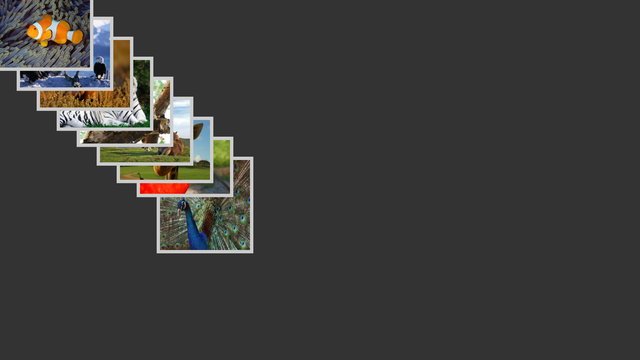
We begin by including the header files of classes we need and creating an instance of our application class:
We want to load images from a directory, so we let the user specify the directory as a command-line argument. Parsing of command line parameters can be done by adding attributes to application. By default, we use directory called 'Images' unless the user specifies another one with the –dir <path> argument.
After we have added the attributes, we can initialize the application:
Next, we open the directory and scan for all image files inside it. If the directory does not exist or it does not contain any images, we return immediately:
We need to prepare to do the layout for the widgets. Since MultiTouch screen resolutions may easily vary from 1024x768 to multiples of full-HD (for example 3840x2160, for quad-HD display) one should avoid hard-coding the layout. Here the imagesize parameter is used to indicate the maximum size of the images. The imagestep is used to place the images with small offset between each image:
Now we iterate through each image file and and create image widgets to show the images. The image widgets extend the standard rectangular widget by placing an image texture on the widget rectangle.
Next we position the new widget on the screen:
We could launch the loading of the image at this stage and have an effective image display. However, there's nothing that would prevent our images from being lost when moved off-screen. The aim of this next step is to ensure that the user can see the images at all times and can not throw them out of the screen bounds:
To achieve this we'll add a small piece of logic to the widget. This is done with so called operators. The operators can be used to apply animations, or a variety of behaviours, to the widgets. In essence, this provides an easy way to extend the behavior of widgets. In this case we will augment the widget by adding an operator that will keep the widget inside the parent widget (which is the main layer widget in this case).
Now we are ready to execute actual loading of the image. In this example we are using synchronized loading, meaning that the if-statement will block until the image header is scanned, and the widget size is set to match the source image size. See also asynchronous loading example.
When the image loading is ready, we add the widget to the application main layer, and resize the widget, keeping the native scale of the image using resizeToFit -function. If there was an error while loading the image, load returns false and since the widget isn't added to the widget hierarchy, it will be removed as soon as the widget pointer w goes out of scope.
Finally, we run the application:
The full source code for the complete example is listed below:

